
About Himawari Circuit
Himawari Circuit times and records your laps at the track with GPS (iOS and Android). Every time you cross a timing line the lap is recorded, along with sector times, top speed and G-force.
- Automatic lap timing with GPS (it detects when you cross the timing line)
- Sector times, up to three sectors
- G-force from the accelerometer (lateral and longitudinal)
- Your driving line on the map, and session replay
- Compare driving lines — yours and other drivers' — with a speed chart
- External GPS receivers such as RaceBox and DigSpice IV
- Leaderboards by track, and live timing to share and watch
- Sharing sessions and chatting in groups
- Vehicle, tire and maintenance records
- Your own tracks, for anything not already in the list
Quick start
If this is your first time, here is how to record a session.
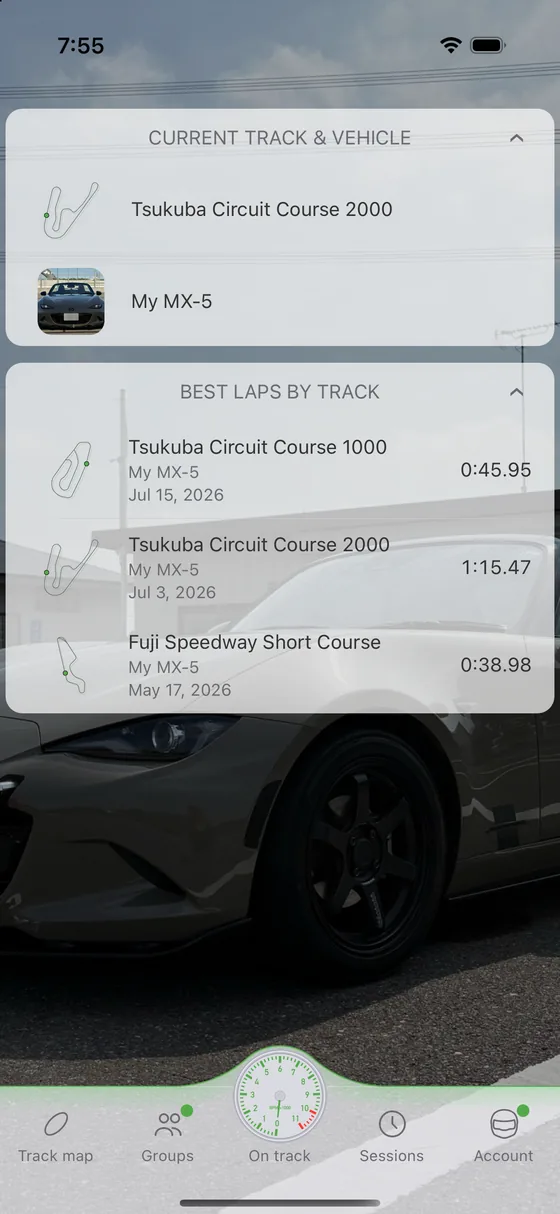
The screens (tab bar)
The five tabs at the bottom of the app take you to each screen. The home screen (dashboard) shows the track and vehicle you have selected; tap either to change it. Below that, “Best laps by track” lists your personal best for each track. Both headings collapse when you tap them.
Track map
The track list and map, with three tabs: Circuit, Segment, and your own tracks and favorites. From each track you can open its leaderboard, live timing and the sessions other drivers have made public. You can also create a track yourself.
Groups
The groups you belong to: members, chat (a dot marks unread messages), and the group's sessions, leaderboard and live timing.
On track
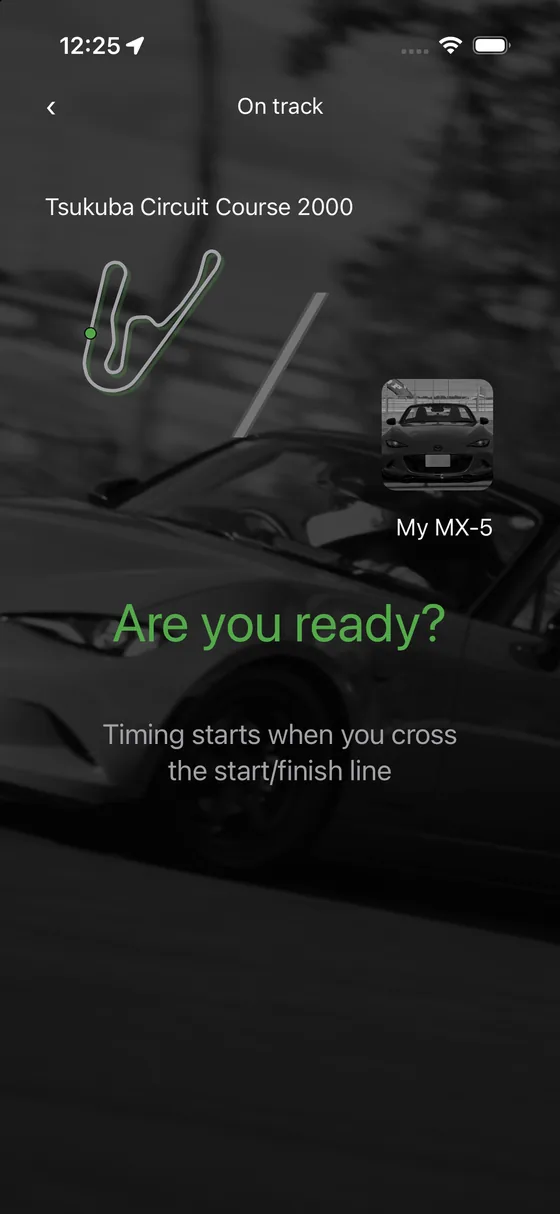
The button that starts a session (in the middle). It uses the track and vehicle you picked on the home screen.
Sessions
Everything you have recorded. Filter by all, by track or by vehicle. Tap for the details, swipe left to delete. Line comparison starts here too.
Account
Signing in, your plan, vehicles, profile, visibility, blocked drivers, settings and support.
The lap timer
While you are driving, the lap timer is on screen.
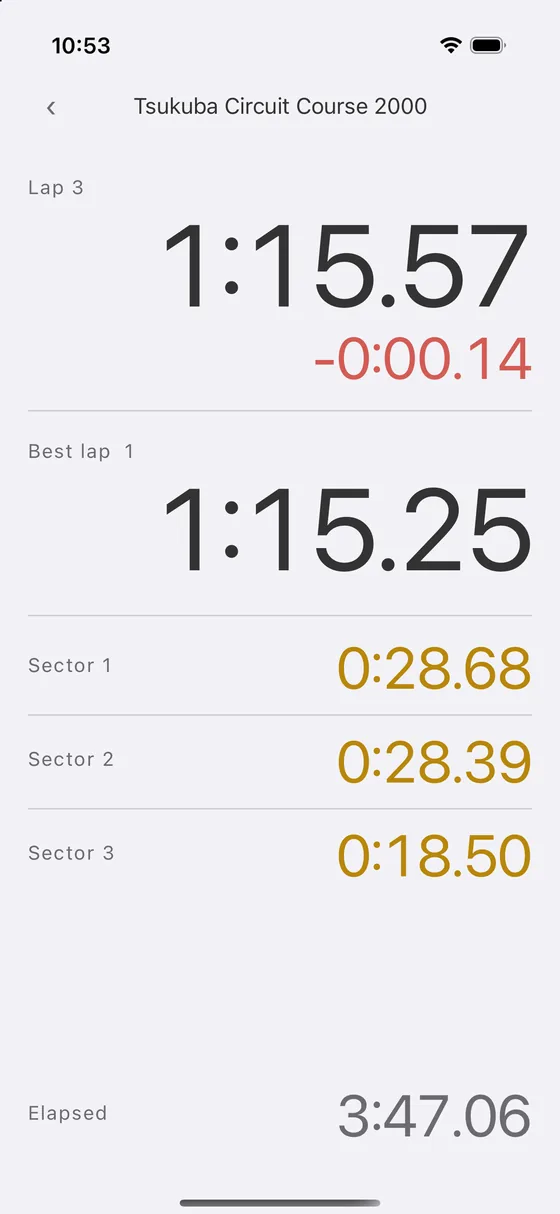
- The current lap number and elapsed time, in large type
- Your best lap and which lap it was
- Sector times, up to three sectors
- A “BEST LAP” flash when you beat your best
- The laps you have already done (scroll to see them)
Tap the back button at the top left to finish. The session is saved on the phone, and uploaded automatically if you are signed in.
If positioning stops, the screen says so. The app restarts positioning on its own, and the message disappears once it comes back. If it stays, check your location permission and, if you use one, the connection to your external GPS receiver.
Sessions
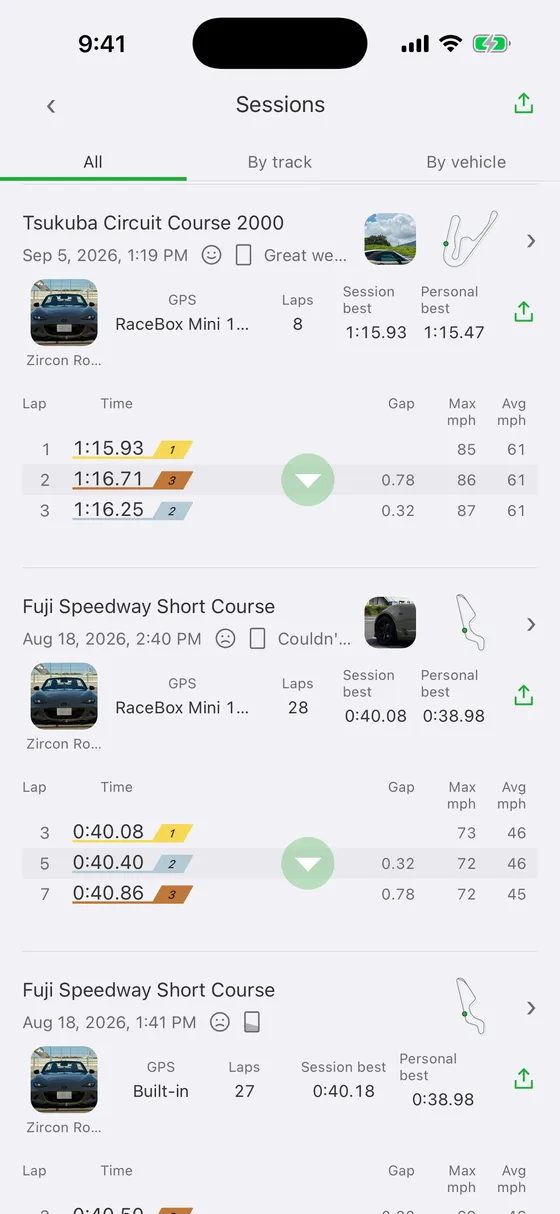
Everything you have recorded, in one list.
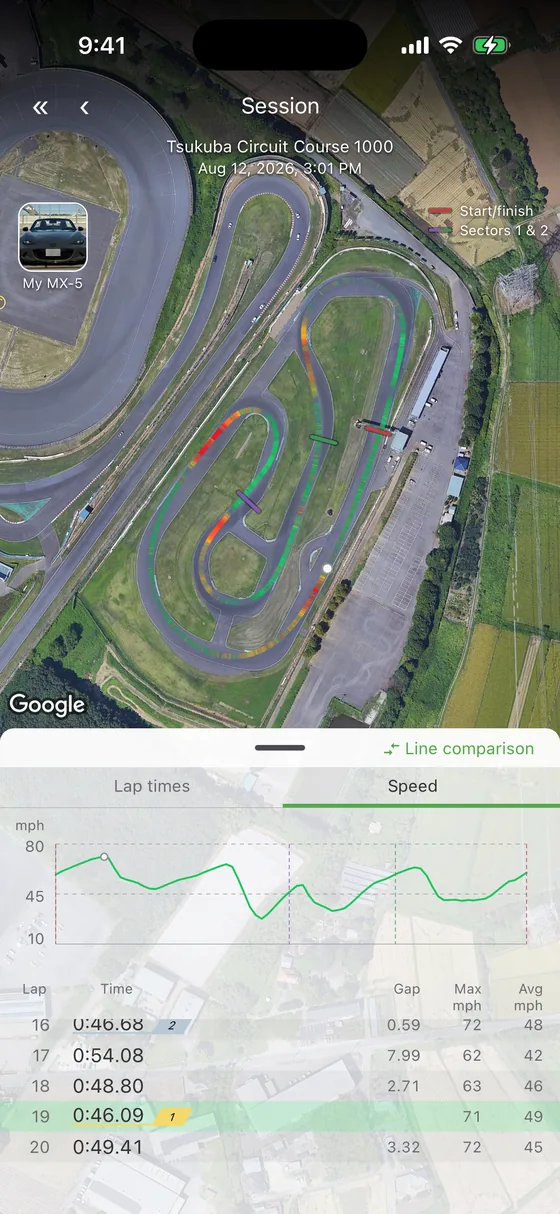
The list
- Each row shows the track, when you drove, and how many laps
- Tap a row for the details: the laps, top speed, peak G and the map
- Swipe left and Delete appears on the right
Session debrief Lap Pro or above
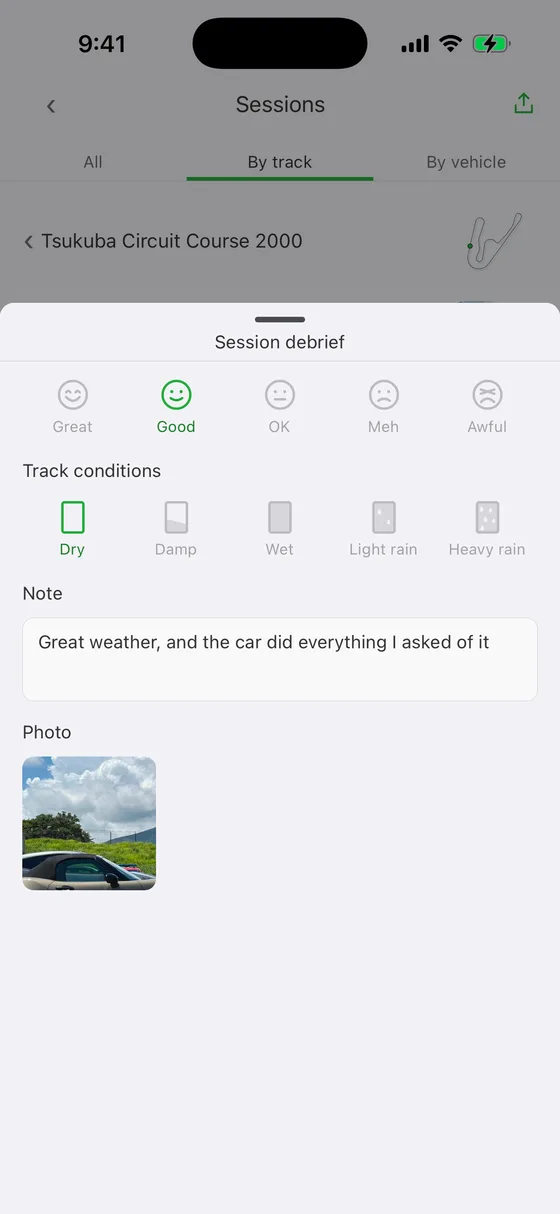
When you finish a run, it appears at the top of the list as a card to fill in. Mood and track conditions are one tap each, the note takes up to 400 characters, and you can keep one photo. All of it is optional; you can skip it.
- Mood Great / Good / OK / Meh / Awful
- Track conditions Dry / Damp / Wet / Light rain / Heavy rain. This is the state of the surface, not the sky — so you can record a dry day on a track still wet from last night's rain.
- Note Up to 400 characters. Useful as a message to yourself for next time.
- Photo One per run. Take it on the spot or pick one from your device. A thumbnail appears on the row, and tapping it shows the photo full size.
You can fill it in or change it later. For a run you have already written up, tap the debrief on its row; for one you have not, swipe left and choose Debrief. Replacing or removing the photo works from the same place.
Filtering
The tabs at the top of the list filter it. Which tabs you get depends on where you opened the list from.
- From the Sessions tab — all, by track, by vehicle
- From a track on the track map — all, or by public group (you see the sessions that members of a public group have made public)
- From a group's sessions — all, by track
Exporting your data Lap Pro or above
- Export everything, one track, one vehicle or a single session as CSV
- The file can be shared to any other app
Sessions that have not been uploaded
Runs recorded out of signal, or while you were signed out, stay on the phone and still appear in the list. They upload by themselves once you are signed in and back online.
Analysing a session Lap Pro or above
Tools for going through a run in detail. Open them from the session list or from a session's details.
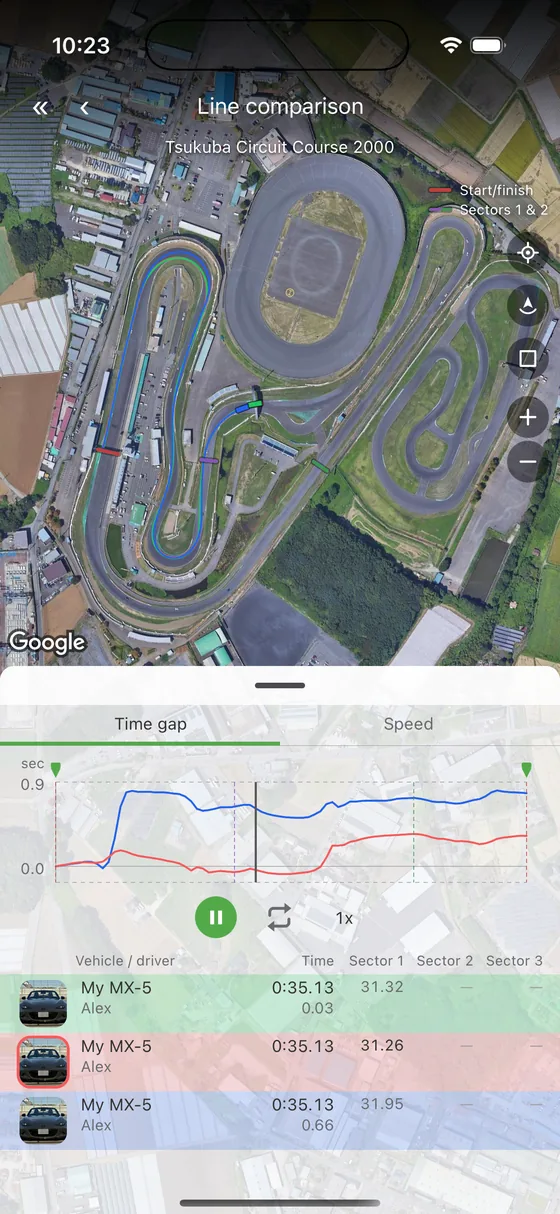
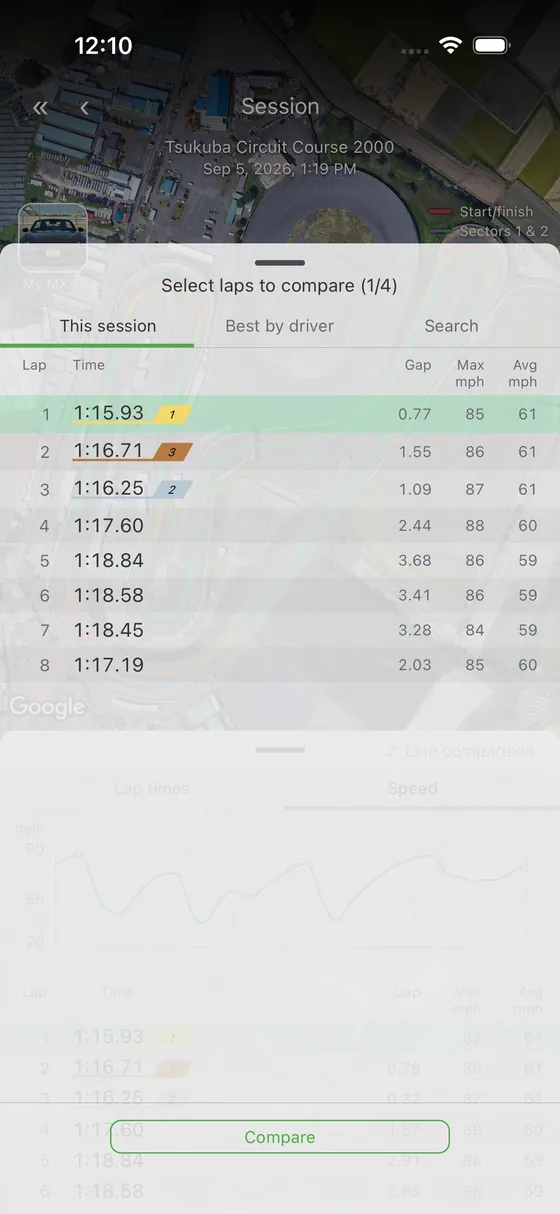
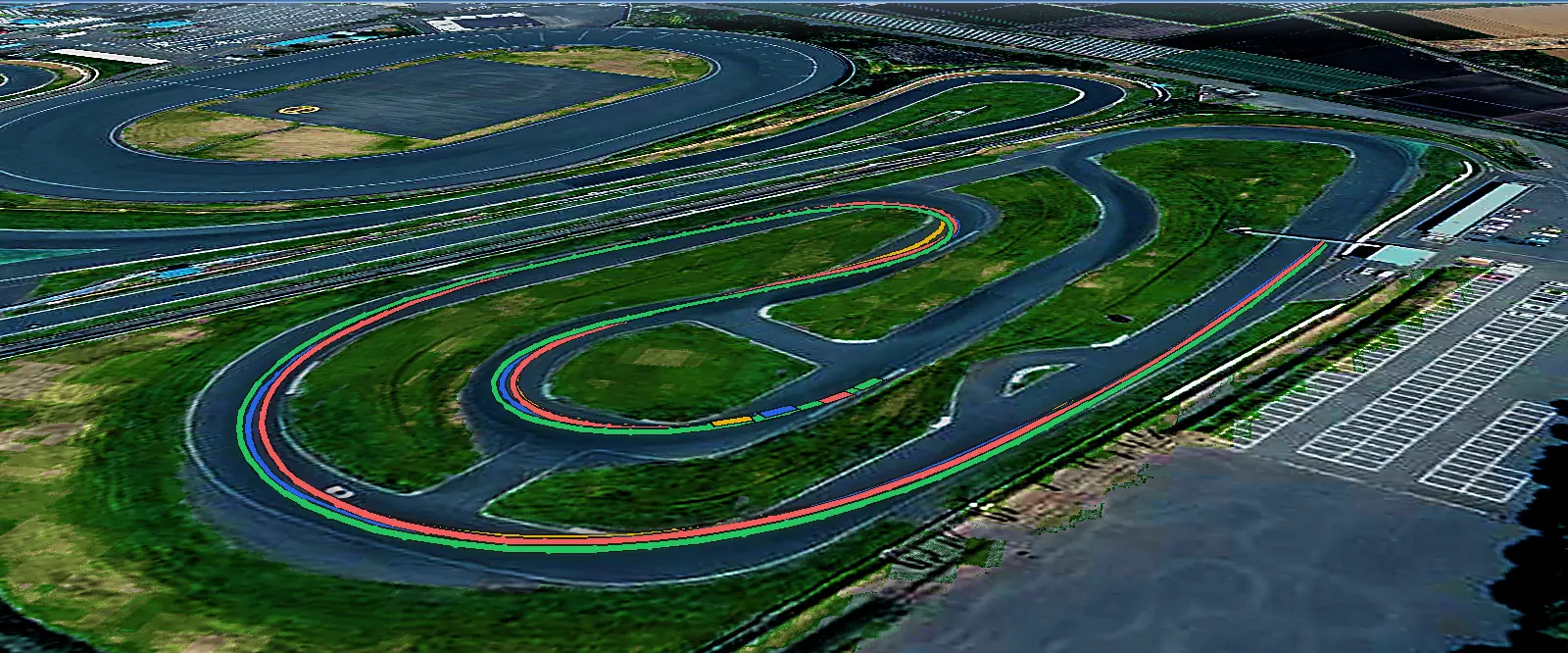
Lay several laps over each other on the map, each in its own color, and see where the lines differ. Lines are drawn green, red, blue and yellow in order of lap time, and you can compare up to four at once. There are two ways in, and they differ in how you pick the laps.
- From the session list “Line comparison” appears under a list that is limited to one track — after you pick a track under “By track”, or when you open the list from the track map or from a group. Tick it and you can select laps from the list; when you are done, tap “Compare”. It does not appear on the “All” tab, where tracks are mixed together. You need to be signed in.
- From a session's details Tap “Line comparison” and a sheet slides up for choosing what to compare against.
The sheet opened from a session has three tabs for choosing laps.
- This session — the other laps of the run you are looking at
- Best by driver — each driver's best lap at this track (up to 100 drivers)
- Search — laps at the same track, narrowed down. Filter by period (all, 1 month, 3 months, 1 year) and by how far the lap is from your own best (±1 s, ±3 s, ±5 s, ±10 s). Only the quickest matching lap from each driver is offered.
There is deliberately no “all” for the time difference: without it, there are far too many laps to choose from. Including even one lap from another driver needs Premium (see “Comparing with your friends” below).
Replay the laps you picked on the line comparison screen. Drag the playhead to look at what the car was doing at a particular corner.
- Change what the map does The buttons to the right of the map keep the leading car centered, turn the map so the leading car points up, tilt the map, and zoom in and out.
- Move the map with your fingers One finger moves the map, even during playback. With two fingers, pinch to zoom, twist to rotate, and move both up or down to tilt.
- Tap to pause Tapping the map during playback pauses it. The play button in the middle of the map starts it again.
- The lap time chart and the speed chart on a session's details (all plans)
- The time gap chart and the speed chart in line comparison (Lap Pro or above). Both are plotted against distance, so you can see exactly where on the track the gap opened up
The gap to your best lap is always shown in the lap list (all plans).
Lay the driving line of someone in your group over your own. This needs both the analysis features and the group features, so it is available on Premium only.
External GPS receivers
You can record with an external GPS receiver such as RaceBox or DigSpice IV over Bluetooth. Add one from “External GPS receivers” in the settings.
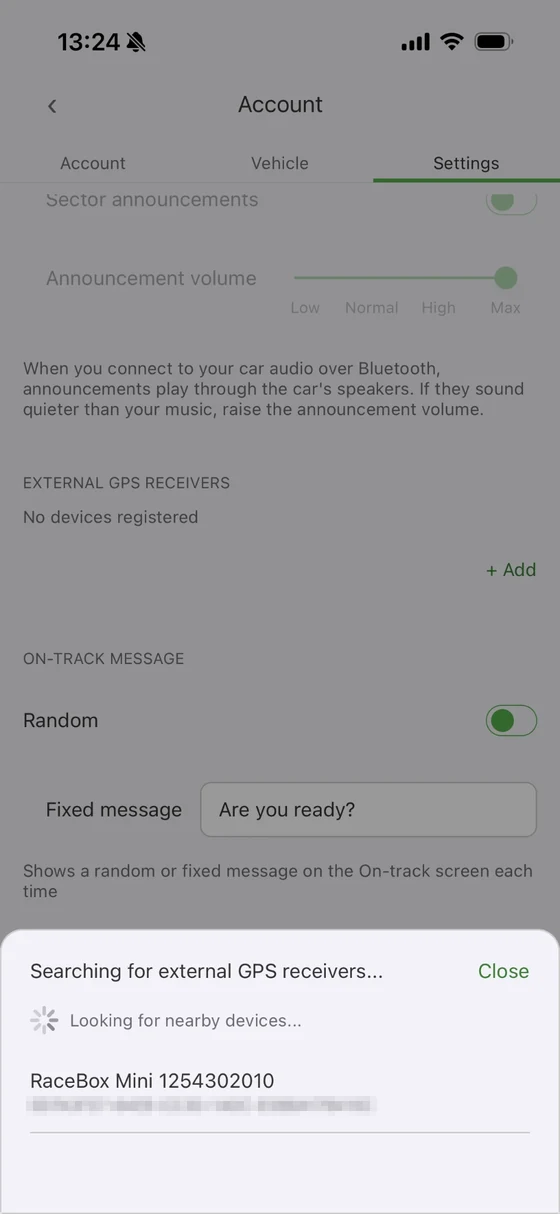
- Turn the receiver on
- Settings → External GPS receivers → tap “+ Add”
- Pick your receiver from the ones it finds
- From then on it connects by itself when you start a session
Tracks
Find tracks from the “Track map” tab. The list has three tabs.
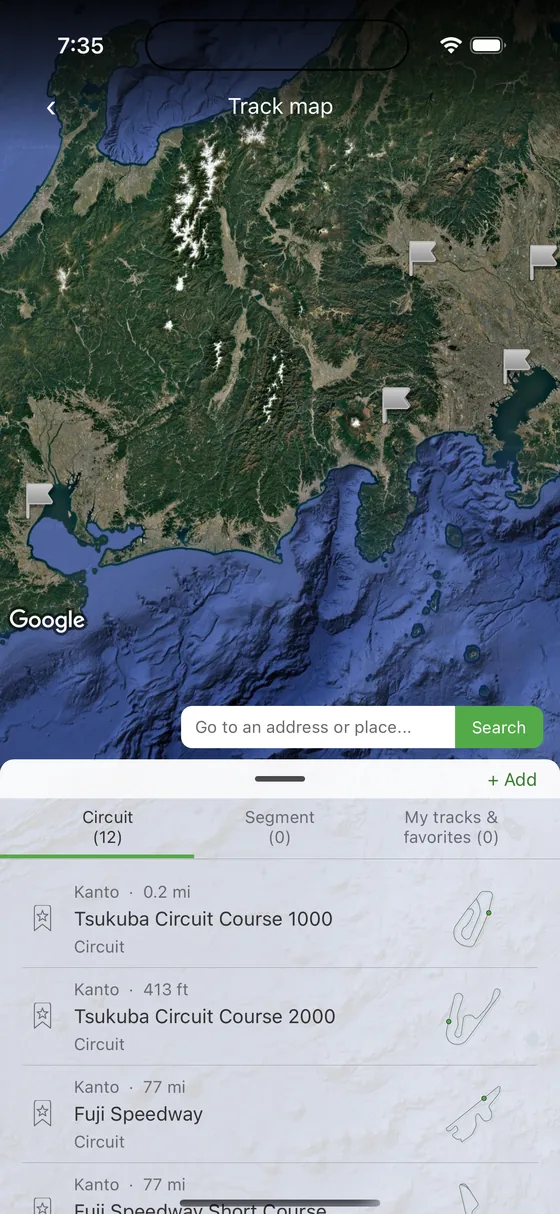
- Circuit — a track you go round. A lap is recorded each time you cross the control line
- Segment — a one-way run where the start and the finish are in different places
- My tracks & favorites — tracks you created, and tracks you marked as favorites
Tap the bookmark at the left of a row to add or remove a favorite. Favorites are collected under “My tracks & favorites”. The bookmark on a track you created is gold, and tapping it opens the editor.
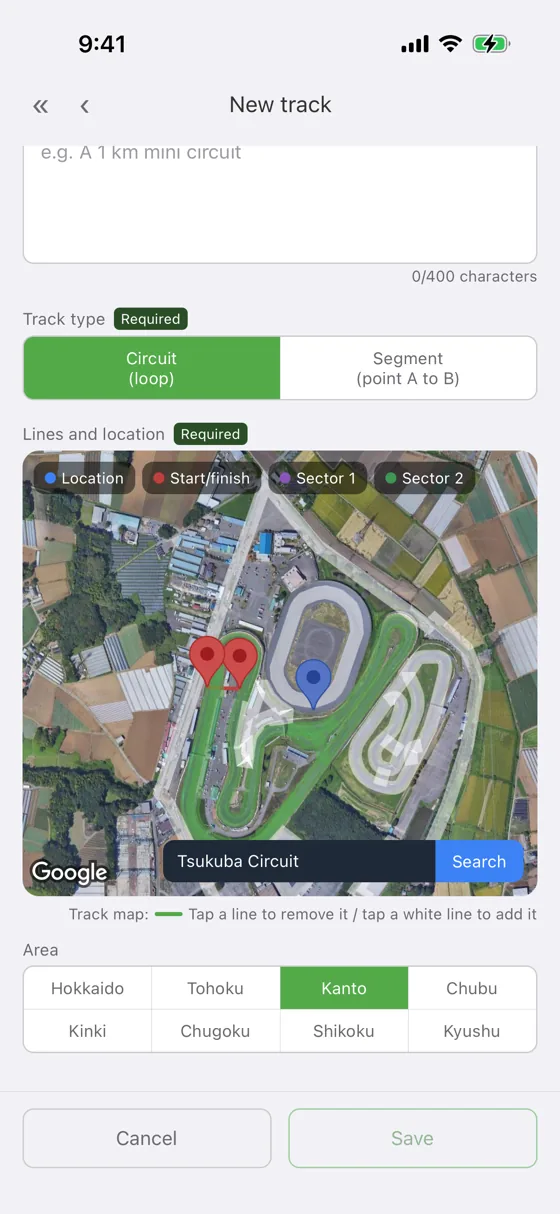
- Tap “+ Add” at the top right of the track list (you need to be signed in)
- Enter the name (required), a description, the kind of track (circuit or segment) and the area
- Place the track on the map. You can search by address
- The track outline is taken from the surrounding map data. Tap any line you do not want to remove it
- Draw the timing lines on the map (make them a little longer than the track is wide — see the note below)
Which lines you can draw depends on the kind of track. A circuit has a control line, sector 1 and sector 2; a segment has a start line, a finish line, sector 1 and sector 2. Sectors are optional.
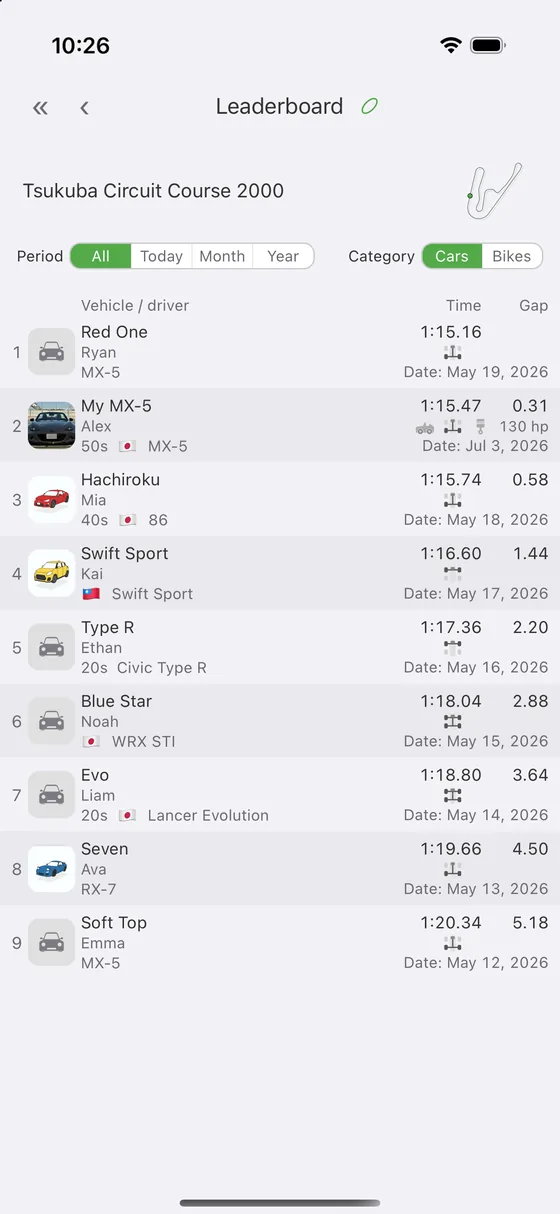
- Leaderboard — times in order, for that track. Every plan can look at it (you need to be signed in)
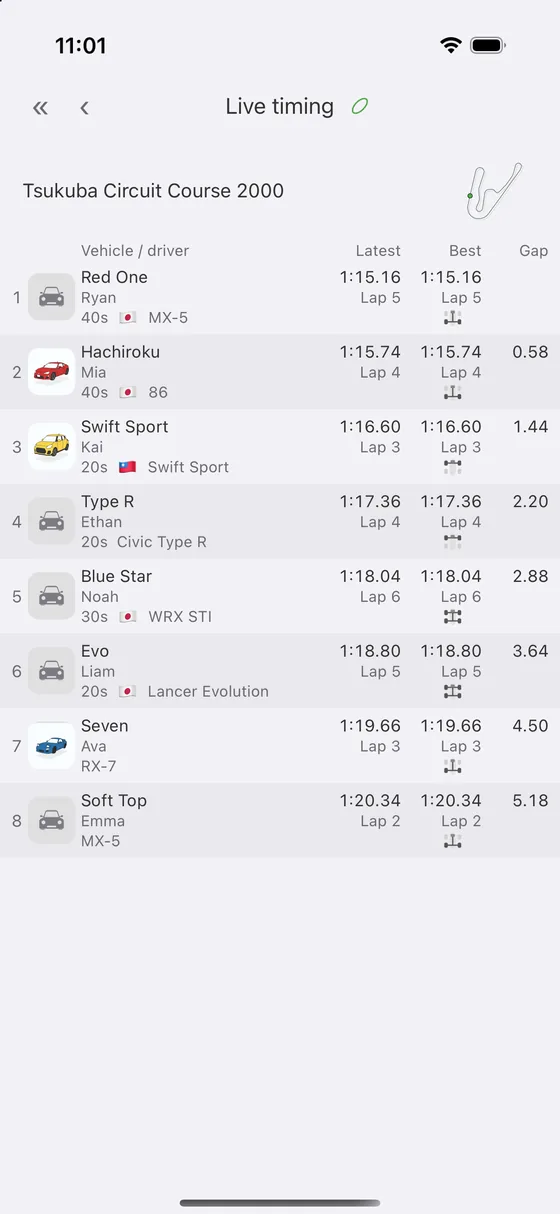
- Live timing — watch the laps of drivers who are out right now Drivers Club or above
- Sessions — runs that other drivers have made public Drivers Club or above
The leaderboard filters by period (all, today, this month, this year — it opens on “this month”) and by category (cars or bikes — it opens on cars). Cars and bikes are never mixed in one table, so one of the two is always selected. The same filters are on a group's leaderboard.
Groups Drivers Club or above
Create a group and share sessions with its members. You need to be signed in.
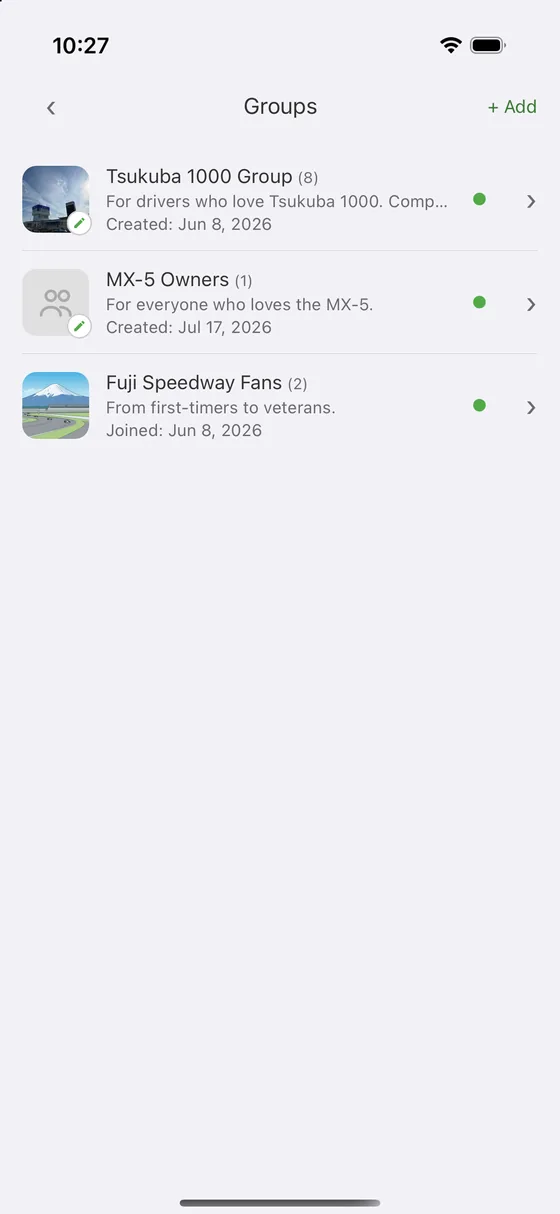
- Open the “Groups” tab
- Tap “+ Add” at the top right
- Enter a name and a description, choose public or private, and create it
A public group is listed under “by public group” in a track's sessions, so drivers outside the group can see the runs too. You can add photos to a group; the first one becomes its icon.
- Open the “Members” tab of the group and tap “Add member” at the top right (owners only)
- Scan the “My QR code” on the other person's Account screen to add them
- A group holds up to 100 people, including the owner
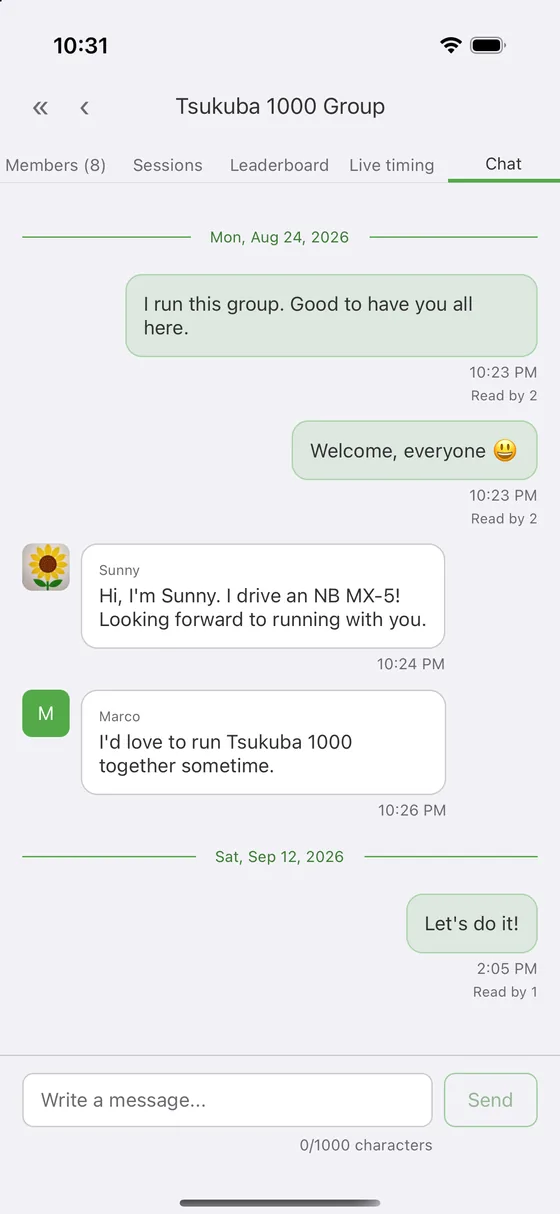
A group has two tabs: “Members” and “Chat”.
- Group chat. Each message shows how many members have read it
- A divider marks where you left off, and the tab gets a dot when there is something unread
- Press and hold a message to copy its text
- Reading the members' sessions
- A group leaderboard for each track
- Sharing and watching lap times live while people are driving
Swipe a group left in the list. Owners get “Delete”, everyone else gets “Leave”.
Reporting and blocking
If a message or a group bothers you, you can report it or block the person. You need to be signed in.
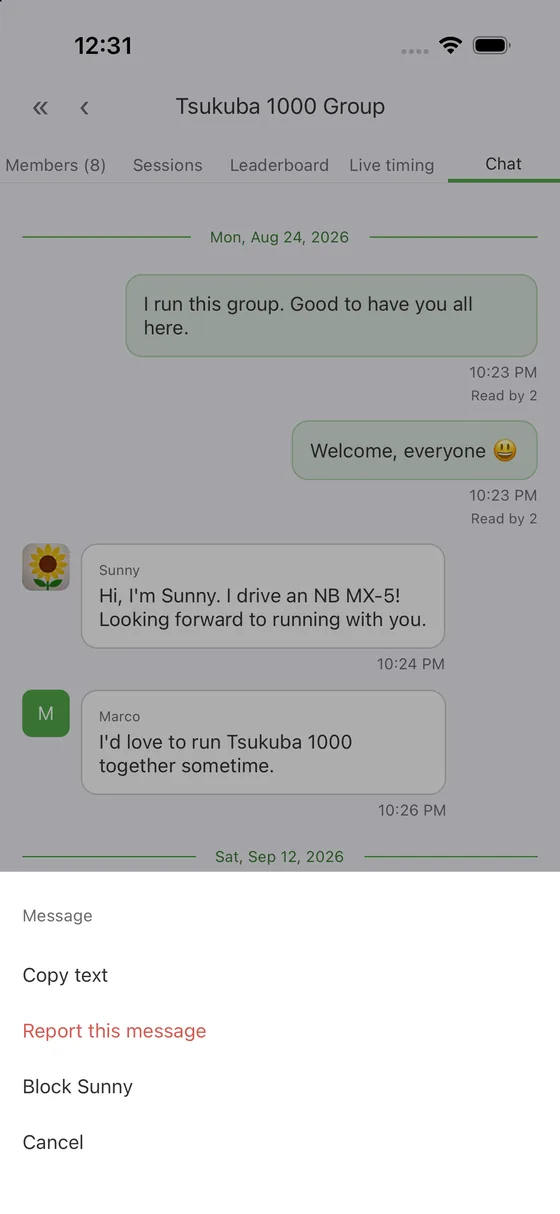
- A message — press and hold it in the group chat and choose “Report this message”
- A group — use the menu at the top right of the group (three dots) and choose “Report this group” (its name, description and photos)
Pick a reason: spam or advertising, abuse or harassment, inappropriate content, times that did not happen, or other. We read what you send and act on it. The report menu does not appear on your own messages or on groups you created.
Press and hold a message in the group chat and choose “Block (name)”. Blocking works both ways — they cannot see you either.
- Neither of you sees the other's messages in a group
- You are not counted in their read count, and their messages do not mark your chat unread
- They do not appear in the session lists by track or group, nor when you choose someone to compare lines with
- Their bio and profile photo are hidden in the member list
Leaderboards and the member list itself (names, roles, join dates) are not affected. Removing one person from a leaderboard would move you up the order for yourself only, which would be misleading.
“Blocked drivers” on the Account screen lists everyone you have blocked. Swipe left and tap “Unblock”.
Vehicles
Add the vehicle you drive and your sessions are recorded against it. Even the free plan takes one vehicle.
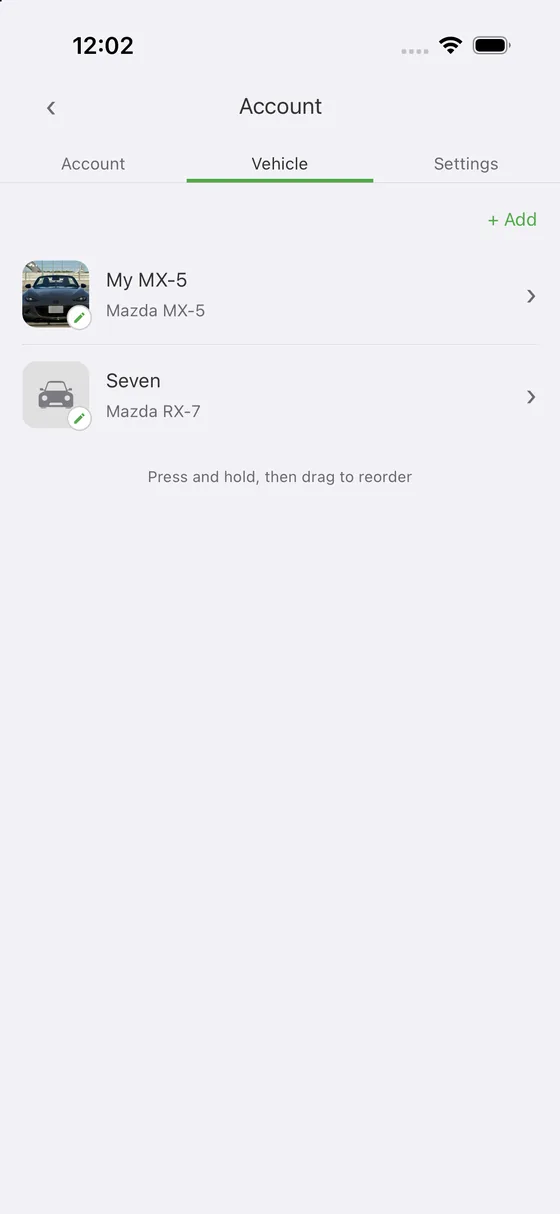
Adding a vehicle
- Tap “+ Add” in the vehicle list on the Account screen
- Enter a display name (required). This is what appears on leaderboards and in sessions
- Maker, model, color, year, category, drivetrain, power and notes are all optional
- You can add photos from your photo library
- Press and hold a row, then drag, to reorder the list
Choosing the vehicle you are driving
- Tap the vehicle on the home screen and pick one
- The session is recorded against the vehicle you picked
Tires and maintenance Lap Pro or above
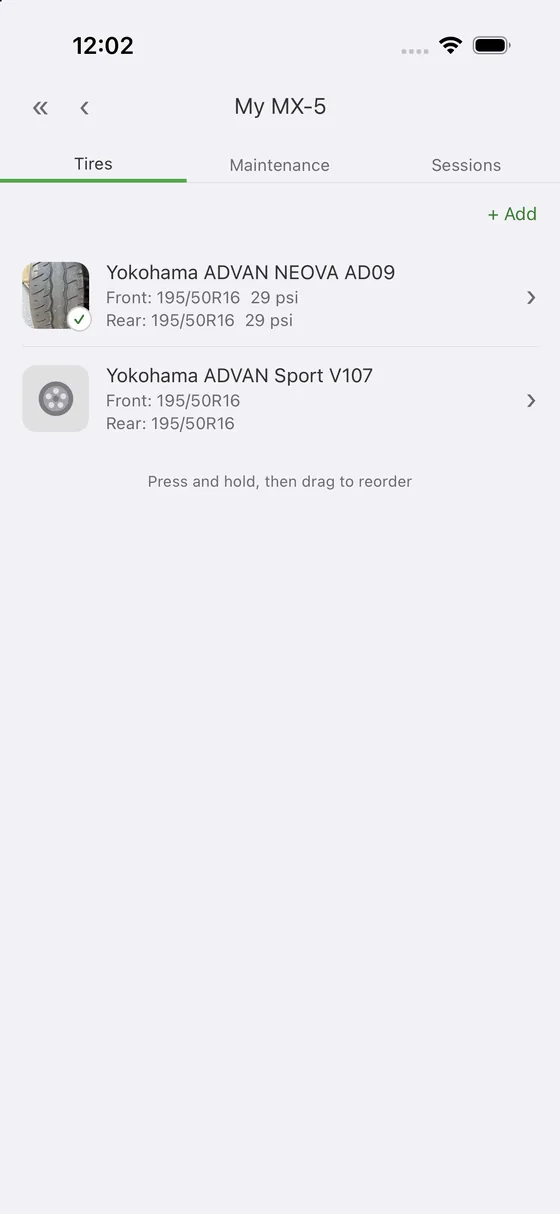
- Add tire sets (brand, size, pressure, photos) and record which set was fitted for a run
- To change the fitted set, swipe it left in the vehicle's tire list and tap “Fit”
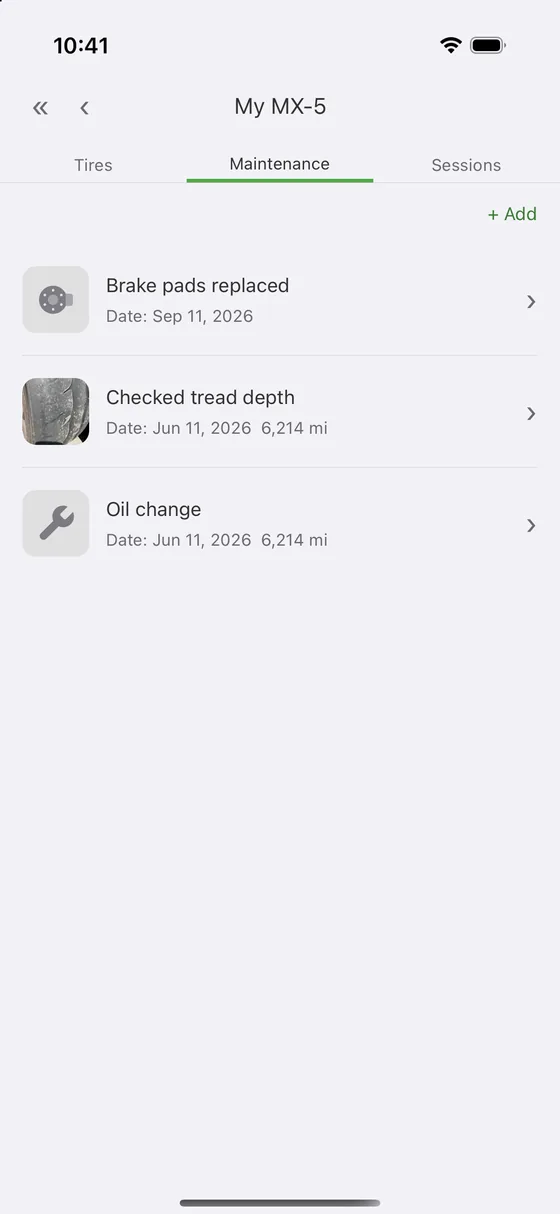
- Keep maintenance records with photos. They can be exported as PDF
- Each vehicle takes up to 100 tire sets and 1,000 maintenance records (no limit on Premium)
History and the recap movie Premium
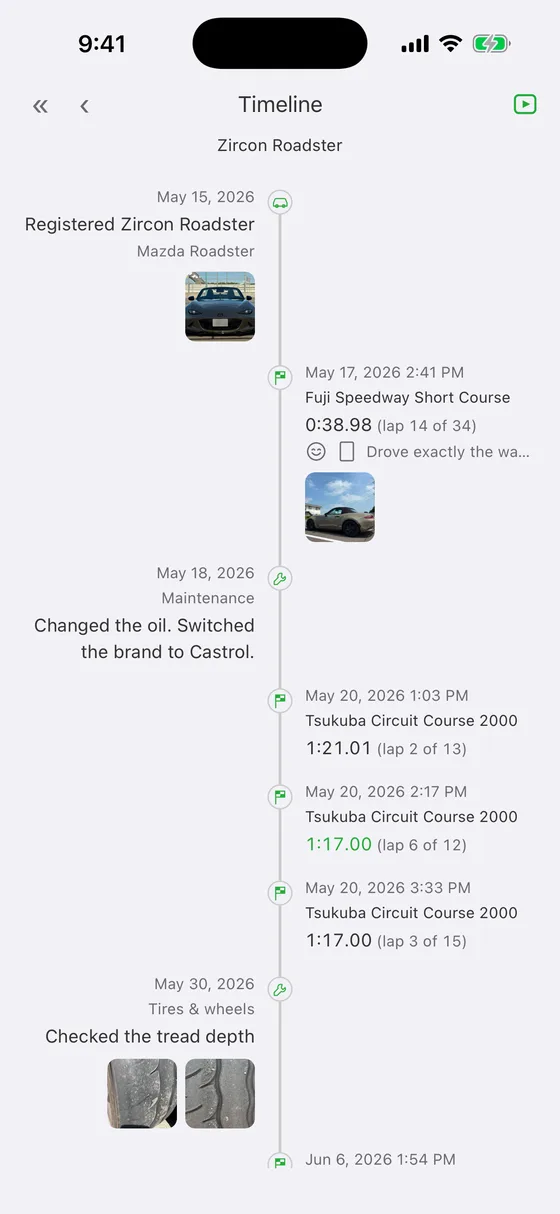
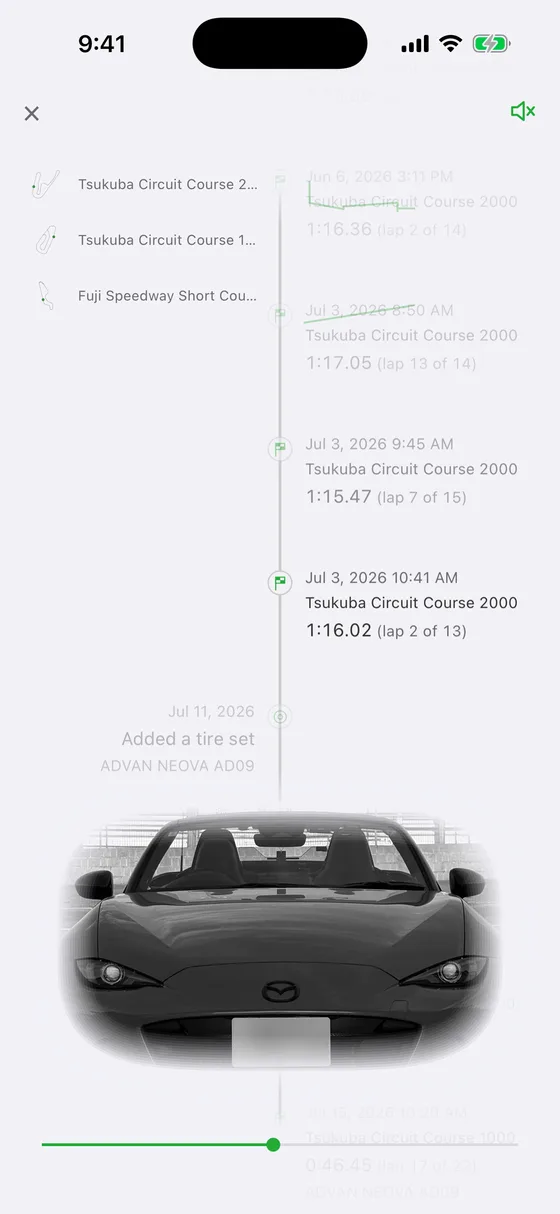
The icon in the header of the machine detail opens its History: everything that happened to that machine, oldest first. Sessions, tires and maintenance records are laid out along a timeline, with a thumbnail wherever there is a photo. Tap a thumbnail to see it full size.
Turn the phone sideways and the timeline runs left to right, with sessions above the line and tires and maintenance below it.
From the header of the History you can play a recap movie. It runs the timeline from the oldest entry, with your best lap at each track drawn behind it. Sound starts off; a button turns it on. Drag the progress bar to move to any point.
Settings
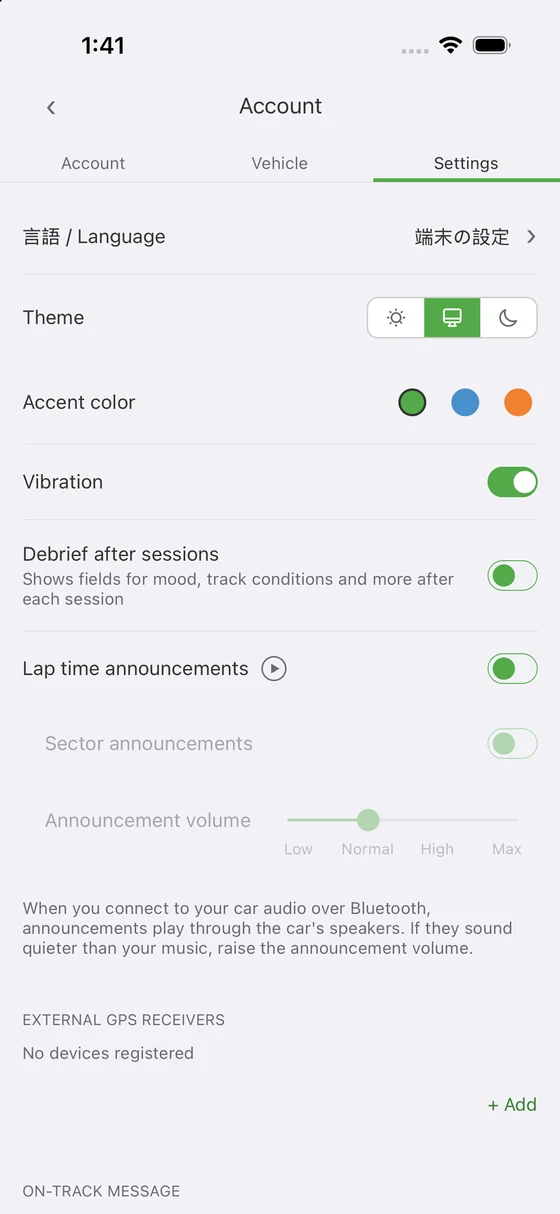
The settings are at the bottom of the Account screen, in this order.
At the top
- 言語 / Language — Japanese, English, or follow the device
- Theme — light, dark, or follow the system
- Accent color — the highlight color used across the app
- Vibration — haptic feedback when you tap
- Session debrief After a run, put a card at the top of the session list for mood, track conditions and a note (on by default). Available on Lap Pro and Premium. On Free and Drivers Club it is always shown as off, and switching it takes you to the plan screen.
- Announce lap times — each lap is read out loud when it is recorded. Tap ▶ on the right to hear it
- Announce sectors Read out sector 1 and sector 2 as you cross them (sector 3 is covered by the lap announcement).
- Announcement volume — quieter, normal, louder or loudest (normal by default)
External GPS receivers
Add and remove RaceBox, DigSpice IV and the like (see External GPS receivers).
On-track message
Choose what is shown when a session starts: a random message, or one you write yourself.
Dashboard wallpaper
Use a photo from your library as the background of the home screen. Brightness and saturation are adjustable.
Security
“Open iOS app settings” or “Open Android app settings” takes you to the operating system's own settings, where you can change permissions such as location.
About
- Announcements — read our announcements again later
- User guide — this page
- Version — tap it for the app's release notes
- Terms of Use
- Privacy Policy
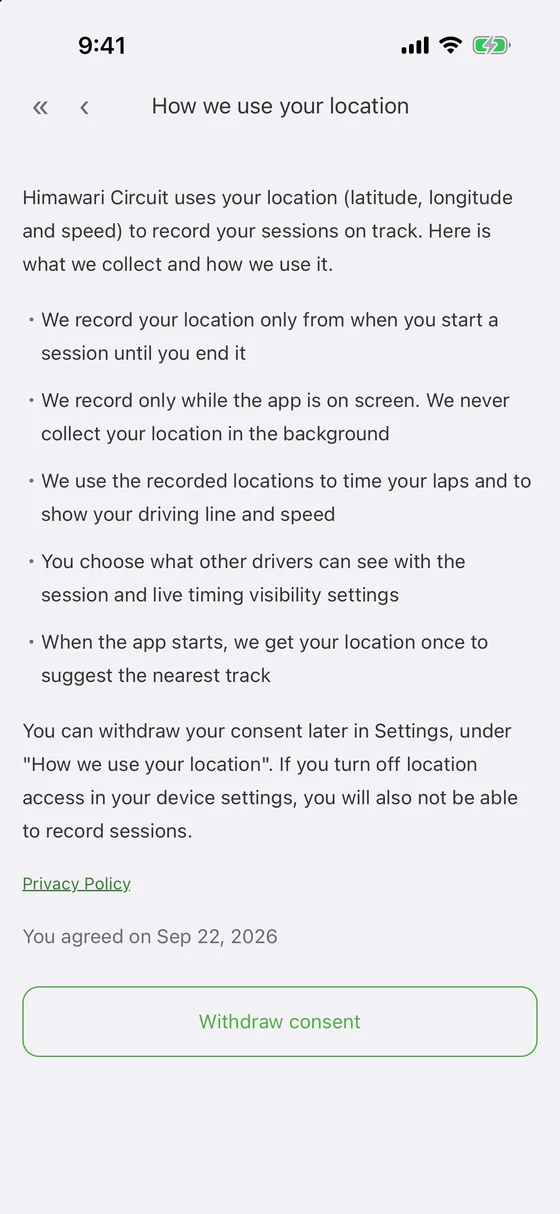
- How we use your location — read back what you agreed to, and withdraw your consent
- Legal notices — the map licenses, and trademarks for the devices we support
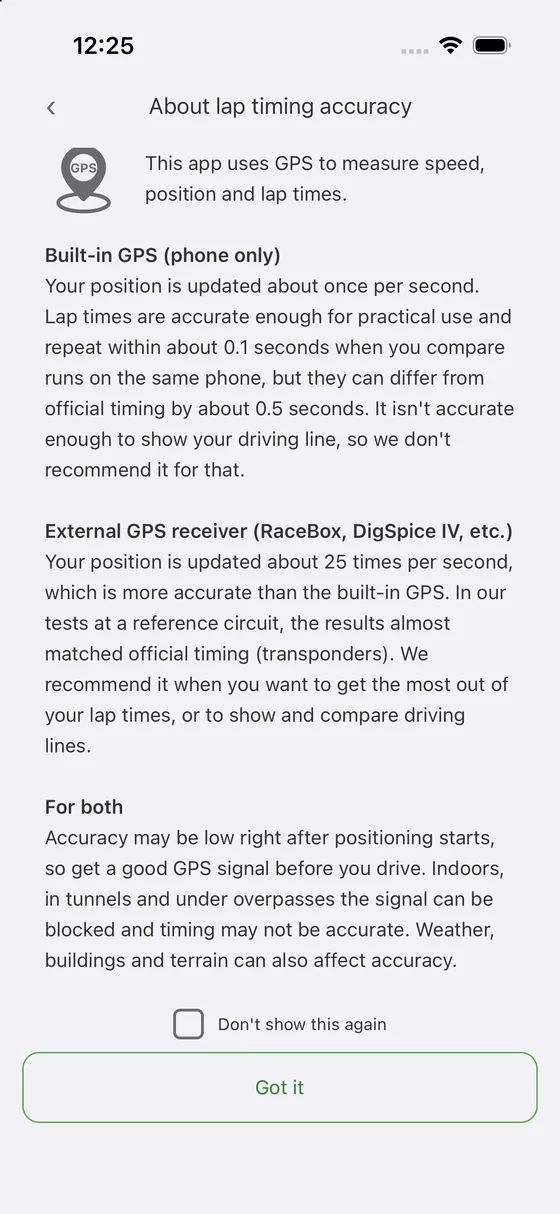
- About lap timing accuracy
At the bottom
- Reset settings — put the display and in-session settings back to their defaults
Plans
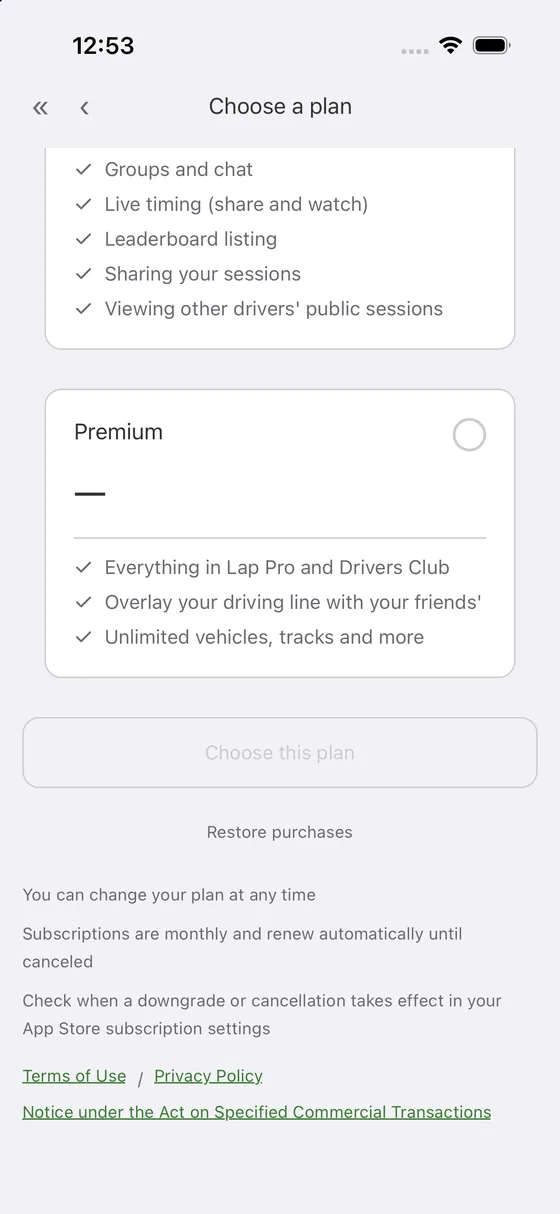
There are four plans. You can change plan from the Account screen. Lap Pro and Drivers Club cannot be held at the same time — if you want both sets of features, choose Premium.
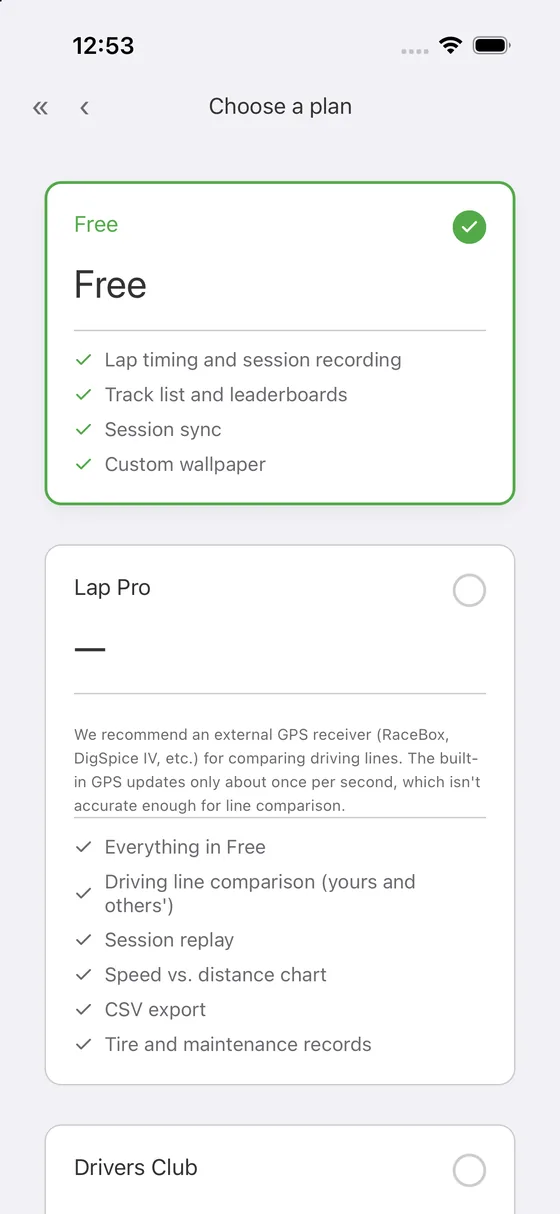
- Automatic lap timing
- The track list and leaderboards
- Cloud sync for your sessions
- Your own wallpaper
- Everything in Free
- Comparing driving lines, yours and other drivers'
- Session replay
- The speed vs. distance chart
- CSV export
- Tire and maintenance records
- Notes after each session
- Everything in Free
- Groups and chat
- Live timing to share and watch
- Leaderboard listing
- Visibility settings for your sessions
- Reading other drivers' public sessions
- Everything in Lap Pro and Drivers Club
- Laying your friends' driving lines over your own
- Machine history and the recap movie
- No limits on any of the counts below
- Vehicles — Free 1 / Lap Pro 30 / Premium unlimited
- Your own tracks — Free 1 / Lap Pro 100 / Premium unlimited
- Tire sets — Lap Pro 100 per vehicle / Premium unlimited
- Maintenance records — Lap Pro 1,000 per vehicle / Premium unlimited
- Groups you create — Drivers Club 30 / Premium unlimited (there is no limit on how many you can join)
- Sessions kept on the phone — Free 100 / Lap Pro 10,000 / Premium unlimited
Account
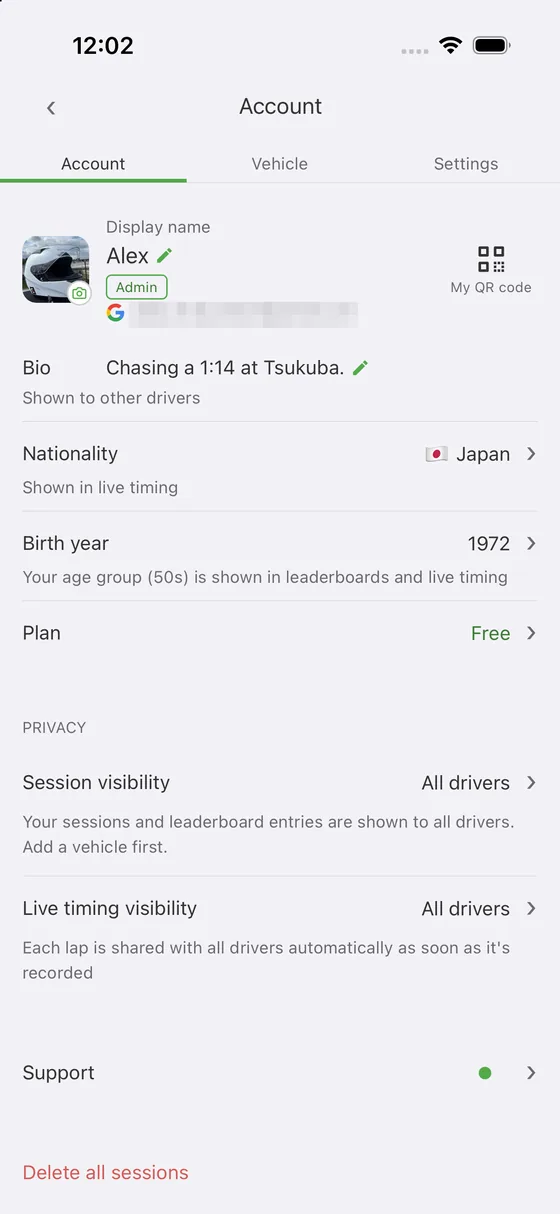
Ways to sign in
- Email address and password
- Google account
- Apple ID
Profile
- Display name — the name other drivers see on leaderboards and in groups
- Bio — shown as your introduction
- Nationality — shown as a flag next to your name on leaderboards and in live timing
- Birth year — other drivers see only the decade, as “30s”. The year you enter is never shown. It appears in the same two places as nationality: leaderboards and live timing.
- Profile photo — set one from your photo library
- My QR code — someone scans this to add you to a group
Privacy Drivers Club or above
- Session visibility — all drivers / groups / private
- Live timing visibility — the same three
The settings are shown on every plan. Opening up (private → groups → all drivers) needs Drivers Club or above, but narrowing it never does. You can go back to private after canceling.
Support
Get in touch from “Support” on the Account screen. When we reply, a dot appears at the right of the row.
Managing your data
- Change email or password
- Blocked drivers — see who you have blocked, and unblock them (see Reporting and blocking)
- Delete all sessions — remove every session you have recorded
- Delete account
Troubleshooting
Things that come up, and where to look.
- No laps are being recorded Check that you are crossing the timing line. Anything quicker than the minimum lap time (30 s for circuits, 3 s for segments) is thrown away as noise, and crossing while stopped does not count (Quick start). On a track you created yourself, a line drawn shorter than the track is wide can be missed at the ends (Tracks).
- The “no GPS signal” message will not go away Check your location permission and, if you use one, the connection to your external GPS receiver. Indoors, in tunnels and under overpasses the signal does not get through (The lap timer).
- I am not on the leaderboard All three are needed: Drivers Club or above, session visibility set to “All drivers”, and a vehicle attached to the session (Account).
- I cannot hear the lap announcements Check that announcements are on, the announcement volume, and the volume on the car stereo. Tap ▶ in the settings to hear it there and then (Settings).
- My sessions are not uploading Check that you are signed in and online. Runs recorded out of signal or before signing in stay on the phone and upload by themselves once both are true (Sessions).
- The app cannot find my external GPS receiver Turn the receiver on first, then look for it under Settings → External GPS receivers → “+ Add”. Once added, it connects by itself when you start a session (External GPS receivers).
- My driving line is too coarse to compare A phone's built-in GPS updates only about once per second, which is not accurate enough to compare lines. We recommend an external GPS receiver (External GPS receivers).
- I cannot add members to a group Only the owner can add members, and a group holds up to 100 people including the owner (Groups).
- My purchase is not showing up Try “Restore purchases” at the very bottom of the plan screen (Plans).
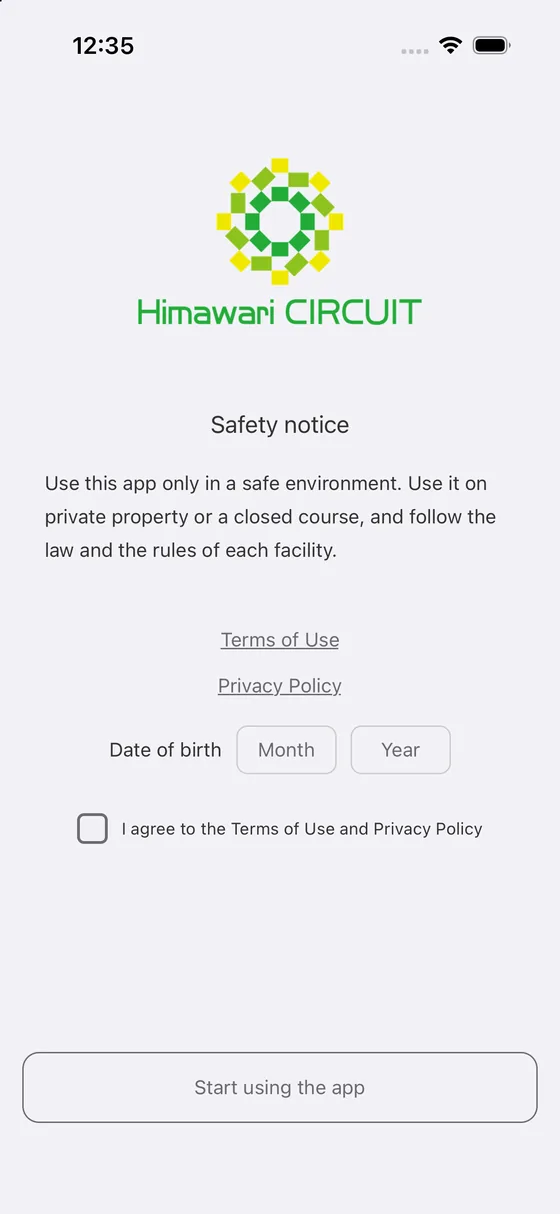
- The age check has locked the app If you entered the wrong date of birth, email support@himawari-tech.jp with the reference number shown on that screen and we will send you an unlock code to enter there. If the lock comes from your Apple Account being registered as under 18, we cannot unlock it — that answer comes from your device.